The trip's settings
Updated 25 October 2026.
Settings, under More in the studio, holds the trip's own facts. A change here takes effect once it is saved, not on Publish. Most settings are the organizer's alone: a co-planner sees them, and is told to ask the organizer.
The address
The trip site lives at an address of its own, such as greece-2026.tripeagle.app, which Settings shows in full, with a button to copy it and one to open it. Only the organizer can change the part before .tripeagle.app: 3 to 40 characters of lowercase letters, digits and hyphens. As you type, Settings says whether another trip already has it.
Until the trip is published nobody has the link, so renaming it costs nothing. Once it is, renaming signs every member out: they sign in again on the new address. Old links keep working and lead to it, and an old address stays this trip's for good. A published trip can be renamed 5 times.
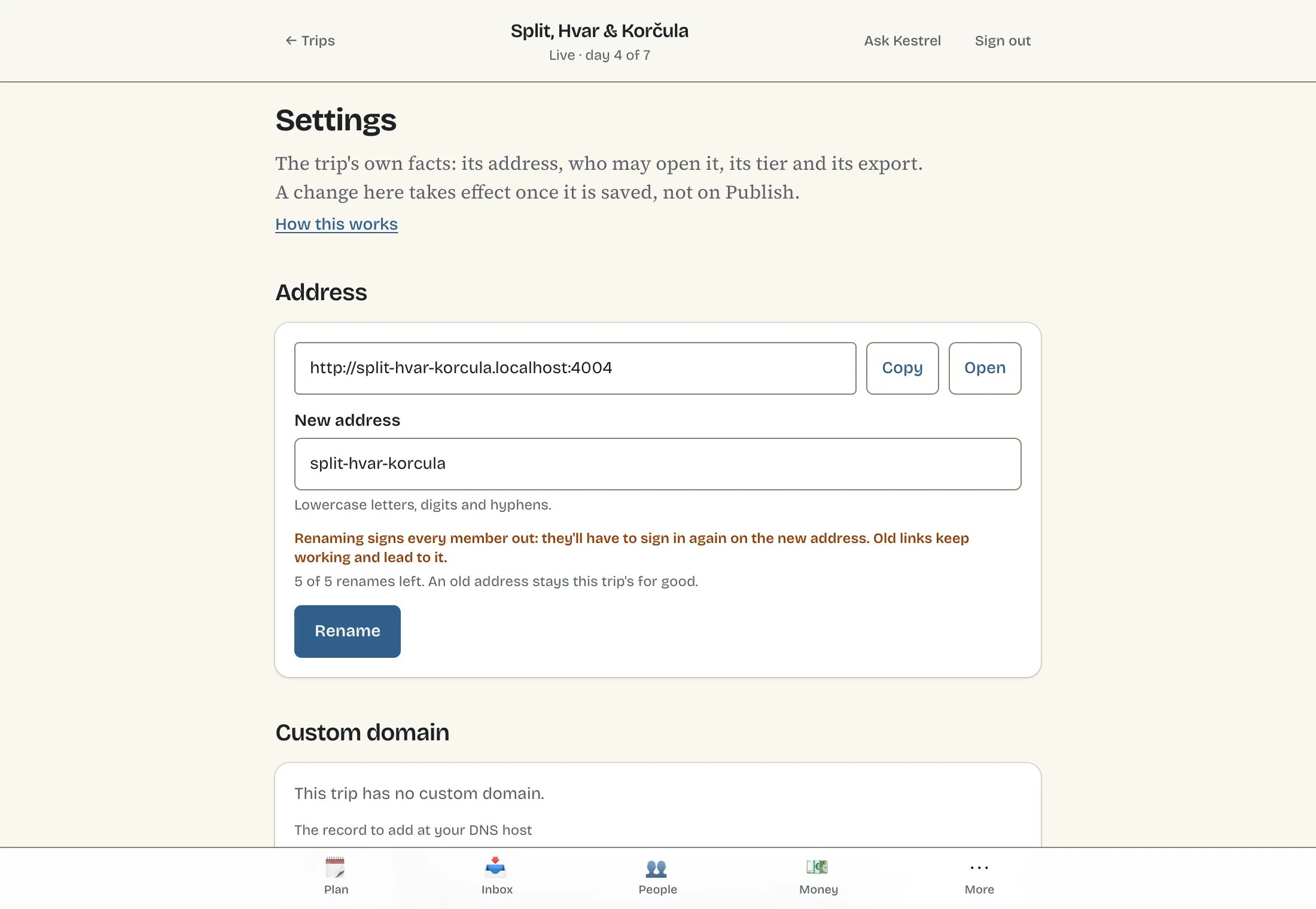
A custom domain
The organizer can put the trip at a subdomain they own, such as trip.example.com, by adding one record at their DNS host. Each step, at the common DNS hosts and at any other, is in Setting up a custom domain.
Who can open the trip site
The organizer chooses between two:
- Invite only: only the trip's members can open its site. This is where every trip starts.
- Anyone with the link: anyone with the trip's address can read a read-only itinerary, its days, its places and where it stays. The album stays members', and nothing about the members shows. Search engines never list it.
Opening it to anyone with the link asks you to confirm first.
AI on photos
Captions and tags for the album's photos, and reading receipts from their pictures. Each spends the trip's AI actions, as Settings says beside the switch. Off, no photo of the trip is read by AI.
Only the organizer turns it on or off. On a trip that doesn't have it, Settings says so in its place.
Starting a trip from this one
The organizer can make a new draft trip of their own from this one: its days, places, notes, packing, emergency card, theme and pictures, moved to the day you choose as the new trip's first. Nobody comes with it, and nothing of theirs: no members, no photos, no expenses. It changes nothing on this trip.
Choose Day 1 of the new trip, which can't be before today, and press Start a trip from this one. The new trip opens in the studio, ready to plan.
The export bundle
Any planner can take the trip as files: its plan as published, its photos, its threads, polls and announcements, and the ledger. Publish the trip first, then ask for a bundle. It is built in the background, and you get an email when it's ready to download.
A bundle can be downloaded for a while after it is made, and Settings says until when. A new one can be asked for a day after the last.
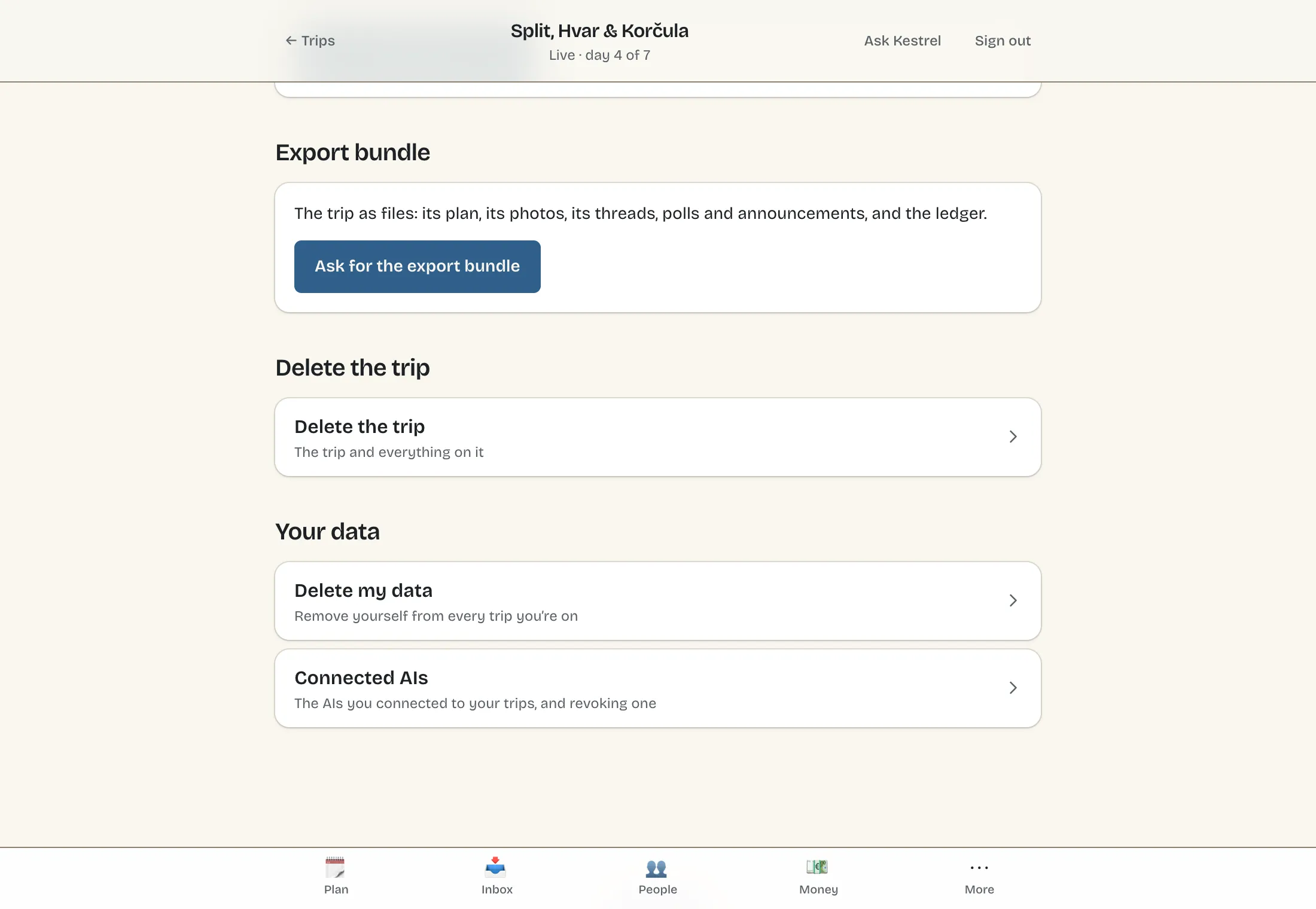
Deleting the trip
Only the organizer can delete the trip; a co-planner is told to ask them. Settings says what goes with it, its members, photos and expenses, and offers to take the export bundle first. To delete it, type the trip's name as it is shown.
Its site goes at once, and nobody else is told. You can restore it from Deleted trips, under your trips in the studio, until the date the screen gives, and it comes back as it was; after that it is gone for good.
Your data
Delete my data removes you from every trip you're on: your photos, comments, polls and announcements go, and a trip you organize is deleted. It asks you to prove the address is yours, and shows what will go before anything does. Expenses you entered stay on each trip's ledger, credited to a former member, so nobody's balance changes.
Connected AIs lists the AIs you connected to your trips, on your account, where you can revoke one. Connecting one is in Connecting your own AI.