Setting up a custom domain
Updated 25 October 2026.
A trip's organizer can give its trip site an address of their own, such as trip.example.com. This walks through the one DNS record it needs, at your DNS host, and what to do if it doesn't go live.
What a custom domain is
A custom domain is a hostname you own, such as trip.example.com, that your trip takes as its address in place of the one TripEagle gave it. It is always a subdomain of yours, never a bare domain such as example.com. You point it at TripEagle with one CNAME record at your DNS host:
| Type | CNAME |
|---|---|
| Name | <your subdomain> |
| Target | domains.tripeagle.app |
A trip has at most one custom domain, and no two trips share one. Only the trip's organizer can add, change or remove it, in the studio's Settings. Replacing or removing it lets it go: it isn't kept as a former address for the trip.
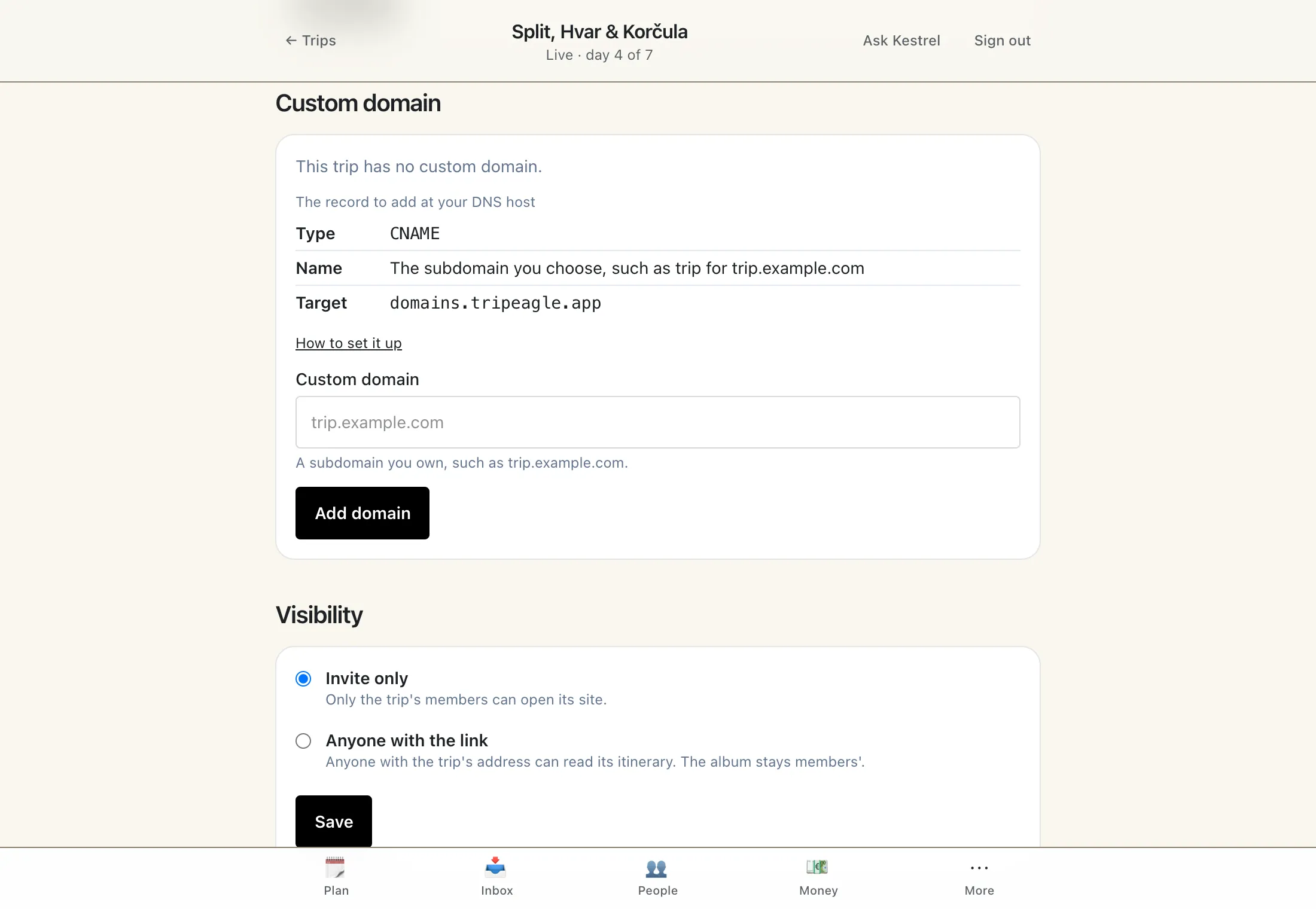
You can send this page to whoever runs your DNS. They don't need to sign in to anything: the record above is all they need.
Why a subdomain
A bare domain such as example.com can't hold a CNAME record: DNS keeps that name for the domain's own records, and only some DNS hosts work around it. A subdomain such as trip.example.com or www.example.com takes a CNAME at every host, so that is what TripEagle asks for.
If you want people to type your bare domain, have your DNS host or registrar forward example.com to the subdomain you choose.
Cloudflare
Checked on 25 October 2026. If the screens look different, the fields are still the ones below.
- In the Cloudflare dashboard, open your domain, then DNS, then Records.
- Select Add record and choose the type CNAME.
- For Name, enter the subdomain's own label, such as
tripfor trip.example.com. - For Target, enter
domains.tripeagle.app. - Switch Proxy status off, so the cloud is grey and it reads DNS only. Leave TTL on Auto.
- Select Save.
The proxy has to be off. With it on, Cloudflare answers with its own addresses instead of the record, so TripEagle can't find the CNAME and the domain fails.
GoDaddy
Checked on 25 October 2026. If the screens look different, the fields are still the ones below.
- Sign in to GoDaddy and open your domain's DNS page, from Domains, then DNS.
- Select Add New Record and choose the type CNAME.
- For Name, enter the subdomain's own label, such as
tripfor trip.example.com. - For Value, enter
domains.tripeagle.app. - Leave TTL as it is, and select Save.
Namecheap
Checked on 25 October 2026. If the screens look different, the fields are still the ones below.
- Sign in to Namecheap, open Domain List, select Manage beside your domain, then open Advanced DNS.
- Under Host Records, select Add New Record and choose CNAME Record.
- For Host, enter the subdomain's own label, such as
tripfor trip.example.com. - For Value, enter
domains.tripeagle.app. - Leave TTL on Automatic, and select the tick to save it.
Squarespace Domains
Checked on 25 October 2026. If the screens look different, the fields are still the ones below.
- Sign in to Squarespace Domains, open your domain, then DNS.
- Under Custom records, select Add record and choose the type CNAME.
- For Host, enter the subdomain's own label, such as
tripfor trip.example.com. - For Data, enter
domains.tripeagle.app. - Select Save.
Amazon Route 53
Checked on 25 October 2026. If the screens look different, the fields are still the ones below.
- In the Route 53 console, open Hosted zones and select your domain's zone.
- Select Create record.
- For Record name, enter the subdomain's own label, such as
tripfor trip.example.com. - For Record type, choose CNAME, and leave Alias off.
- For Value, enter
domains.tripeagle.app. - Leave TTL at 300 and the routing policy on Simple routing, then select Create records.
Any other provider
Every DNS host has a page of DNS records, sometimes called a zone or a zone editor. Add one record there:
| Type | CNAME |
|---|---|
| Name | <your subdomain> |
| Target | domains.tripeagle.app |
Most hosts want only the subdomain's own label as the name, such as trip, and add your domain after it. If yours asks for the full name, enter trip.example.com. If the name it shows ends up as trip.example.com.example.com, enter only the label instead.
A name can have only one CNAME record and nothing else beside it, so remove any other record for the same subdomain first.
If it stays pending
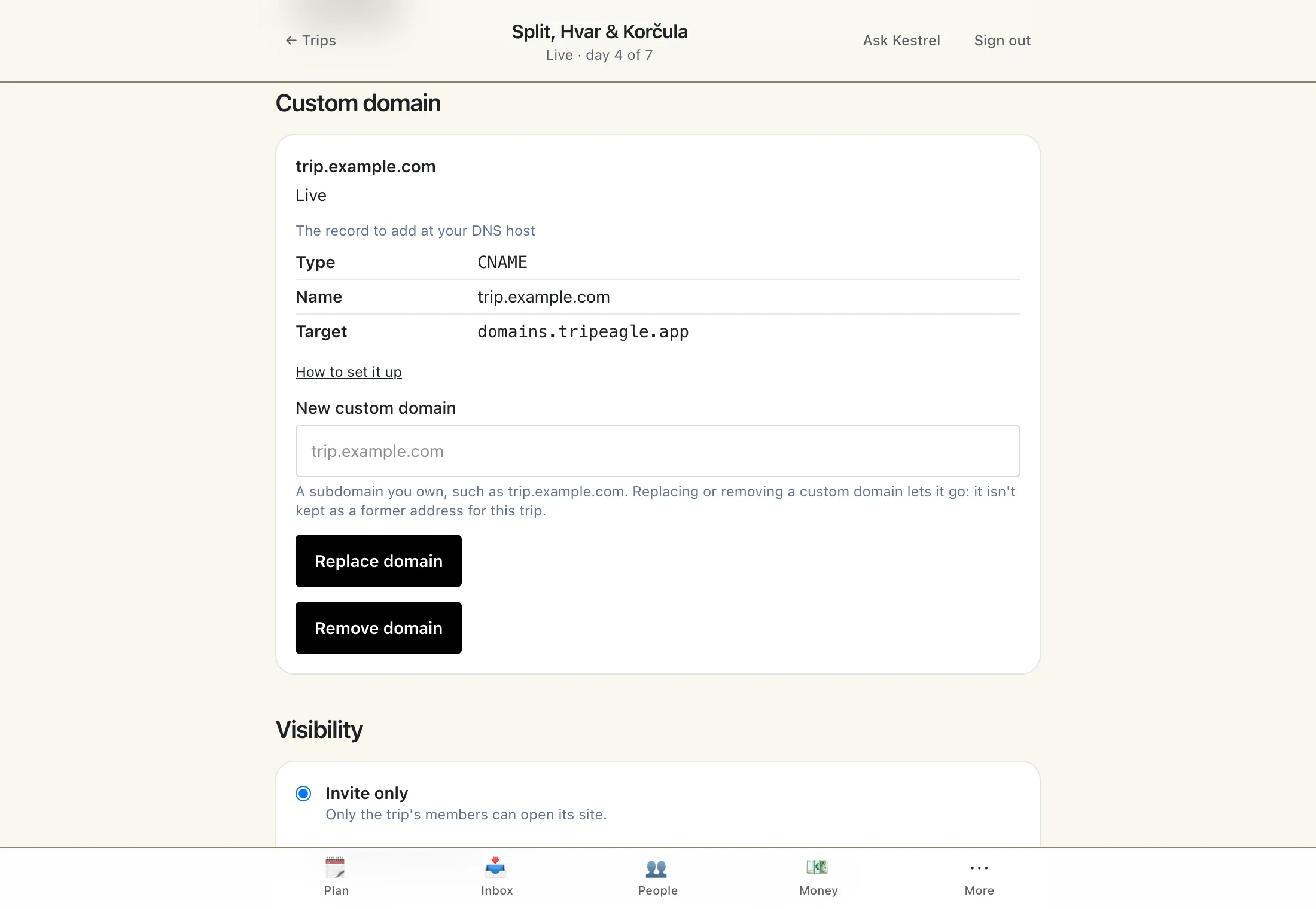
Pending means TripEagle is waiting to find your CNAME record and then to have a certificate issued for the domain. Once the record is in place this usually takes a few minutes.
A change to DNS takes time to propagate: places that looked up your subdomain before keep the old answer until it expires, which can take a few hours, and in rare cases up to two days. While it is pending, TripEagle keeps checking by itself.
If it is still pending after a day, check the record against the table above, at the same subdomain you typed in Settings. A DNS lookup site can show what the world sees: a lookup of your subdomain's CNAME should answer domains.tripeagle.app.
If it failed
Settings says why it failed, in one of the lines below. Fix what it names at your DNS host, then select Check again.
No CNAME record was found
Add the record if it isn't there. If it is, check that its name is your subdomain and not the subdomain twice over (trip.example.com.example.com), and, at Cloudflare, that the proxy is off.
The CNAME record points somewhere else
The subdomain has a CNAME record, but not to domains.tripeagle.app. Change its target to that, and remove any other record for the same subdomain that conflicts with it.
A CAA record stops the certificate
A CAA record on your domain says which certificate authorities may issue for it, and the one Cloudflare uses for TripEagle isn't among them. Add a CAA record that allows the authorities Cloudflare lists in its documentation, or remove the CAA records.
The record wasn't found in time
TripEagle looked for the record for a while and didn't find it. Check that the record is in place as above, then select Check again.
The certificate couldn't be issued
Check that the CNAME record is the only record for the subdomain and that no CAA record stands in the way, then select Check again.
This domain can't be used with TripEagle
The domain is refused for use with TripEagle. Choose another subdomain.
This domain has moved to another service
The subdomain now points to another service. Point it back with the record above, or choose another subdomain.