Signing in on a new device
Updated 26 October 2026.
You sign in to a trip with a link we email you, or a code by text, on each device you use. This is how they work, what the app asks when it is already signed in, and how to sign out on every device at once.
There's no password
There's no password to remember. On the trip's sign-in page, type the email address you were invited with and ask for a link. If you're on the trip, we email you one, and opening it signs you in. Only the address the trip has for you gets a link, so use the one your invitation came to.

Where the page offers it, Sign in with Apple works too, when the address your Apple ID shares is the one on the trip.
Getting a code by text
If you'd rather not wait for an email, add a sign-in phone and get a code by text instead. It's under More on a trip site, on your Account in the studio, and in Settings in the app. Type your number with its country code, then the code we text it.
After that, type your number instead of your address on any sign-in page, and type the code on the same page. If the number is your sign-in phone, the code comes by text. We only ever text this number a code, and your email can always get one too.
A number belongs to one address. Proving it on a second address takes it from the first, and that address is emailed, so on a shared family number the last person to prove it signs in by text. Removing your sign-in phone, or changing it, is in the same place you added it. Not every country can be texted yet; if yours can't, the page says so.
The link works once, for fifteen minutes
The email says it: the link works once and for fifteen minutes. Opening it shows a page with a button to sign in, so a mail app that checks links before you open them can't use it up. Once it has signed you in, or once fifteen minutes have passed, it does nothing, and you ask for another.
Your invitation's link is the same kind of link, and lasts fourteen days. After that you ask for a sign-in link with the same address.
If you didn't ask for a link, ignore the email: nobody is signed in without it.
Signing in on a new phone or computer
Each phone, tablet or computer signs in by itself. Ask for the link on the device you want to use, and open the email there: the link signs in the browser or the app that opens it, not the one you asked from. Signing in on a new phone doesn't sign you out anywhere else.
Once signed in, a device stays signed in for 90 days after you last used it, so you won't be asked again on the trip.
Signing in to the app
On a phone with the TripEagle app, the link opens the app, and the app signs in to the trip without a button. If the app is already signed in to that trip, it asks first, because a link signs the phone in as whoever it was sent to:
- Sign in with this link signs the app in as the person the link was sent to. Use it only if the link came to you.
- Stay signed in as I am leaves the app as it was, and opens the trip.
Signing out everywhere
If you've lost a phone, or signed in on a computer that isn't yours, sign out everywhere from a device you still have. Sign out everywhere is under More on a trip site, on your Account in the studio, and under your trips in the app. It asks first, and says what will end:
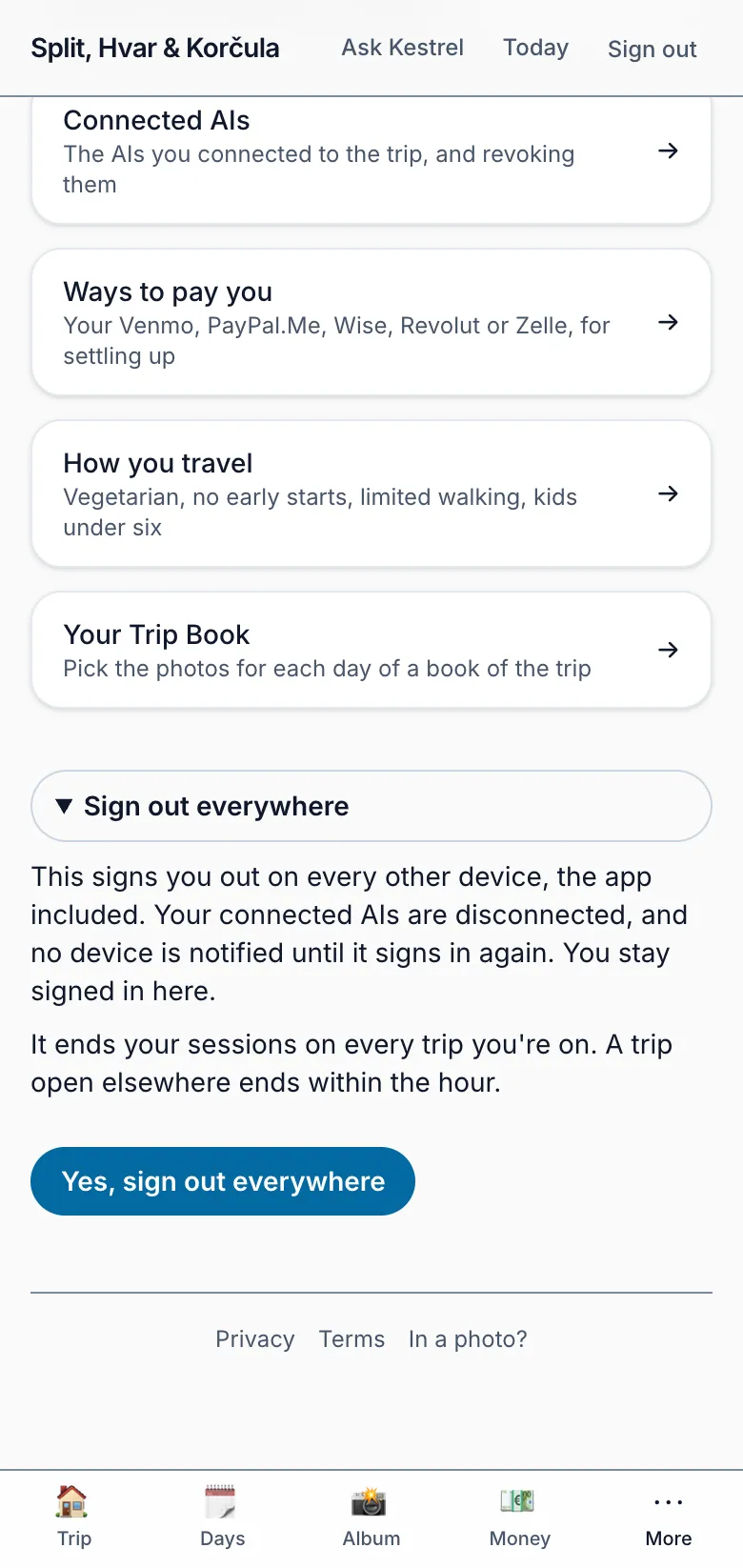
Yes, sign out everywhere signs you out on every other phone, tablet and computer, the app included, on every trip you're on and in the studio. It also disconnects your connected AIs, and an unused sign-in link stops working. The device you asked from stays signed in.
A trip already open on another device ends within the hour. To use a device again, sign in on it with a new link, and connect an AI again if you want it back.
A link that has expired or been used
A link opened a second time, or after its fifteen minutes, says "This link has expired or been used". Ask for a new one right there, and open it on the device you want to use. In the app, Ask for a new link opens the trip's sign-in page, and the link it emails opens the app again.