Installing the app or the trip site on a phone
Updated 25 October 2026.
You can follow the trip in the TripEagle app, or put the trip site on your phone's Home Screen as an app of its own. Either one is how your phone gets the trip's notifications.
The TripEagle app
The TripEagle app is in the App Store for iPhone and on Google Play for Android: search for TripEagle. It holds every trip you're on, works offline, and notifies you from the start.
To add a trip to it, ask for a sign-in link on the trip's sign-in page and open the email on the phone: the link opens the app and signs it in to that trip. Your invitation's link does the same.
The trip site on an iPhone
You don't need the app: the trip site installs as its own app, with the trip's name and icon. Open the trip's address in Safari and sign in, then:
- Tap Share, the square with an arrow pointing up.
- Scroll down and tap Add to Home Screen, then Add.
- Open the trip from its icon on your Home Screen from now on.
The trip site on Android
Open the trip's address in Chrome and sign in, then:
- Tap the menu, the three dots at the top right.
- Tap Add to Home screen or Install app, then Install.
Notifications work in Chrome on Android whether or not you install it: turn on Notify this phone under Preferences.
Why notifications need the Home Screen on an iPhone
An iPhone sends a website's notifications only once it is on the Home Screen and opened from the Home Screen: Safari in a tab can't receive them. So on an iPhone the trip site shows a nudge where its Notify this phone switch would be: add the trip to your Home Screen, and open it from there.
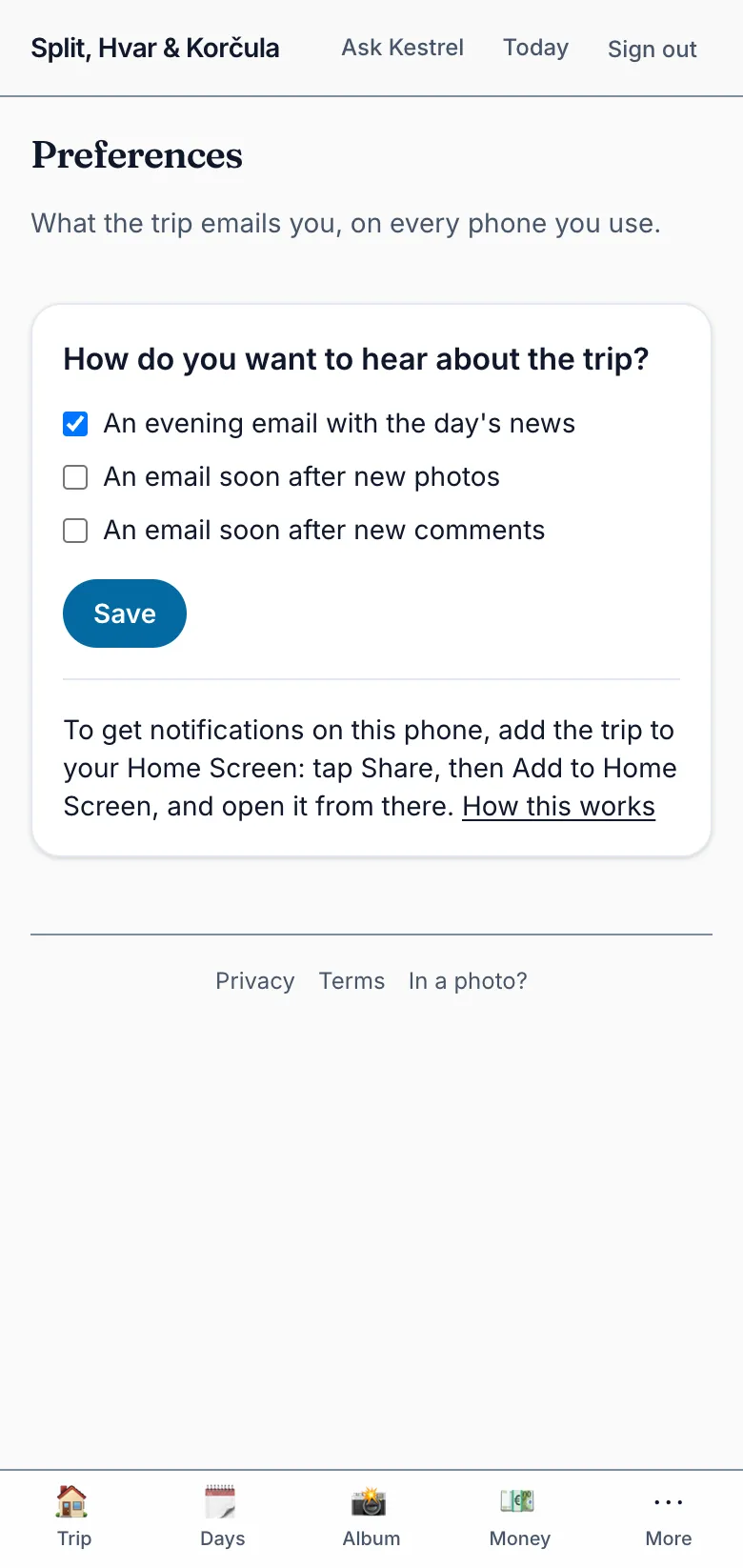
Open the trip from its new icon, sign in there once, and Notify this phone appears in its place: turn it on, and allow notifications when your iPhone asks.